NODAR Viewer
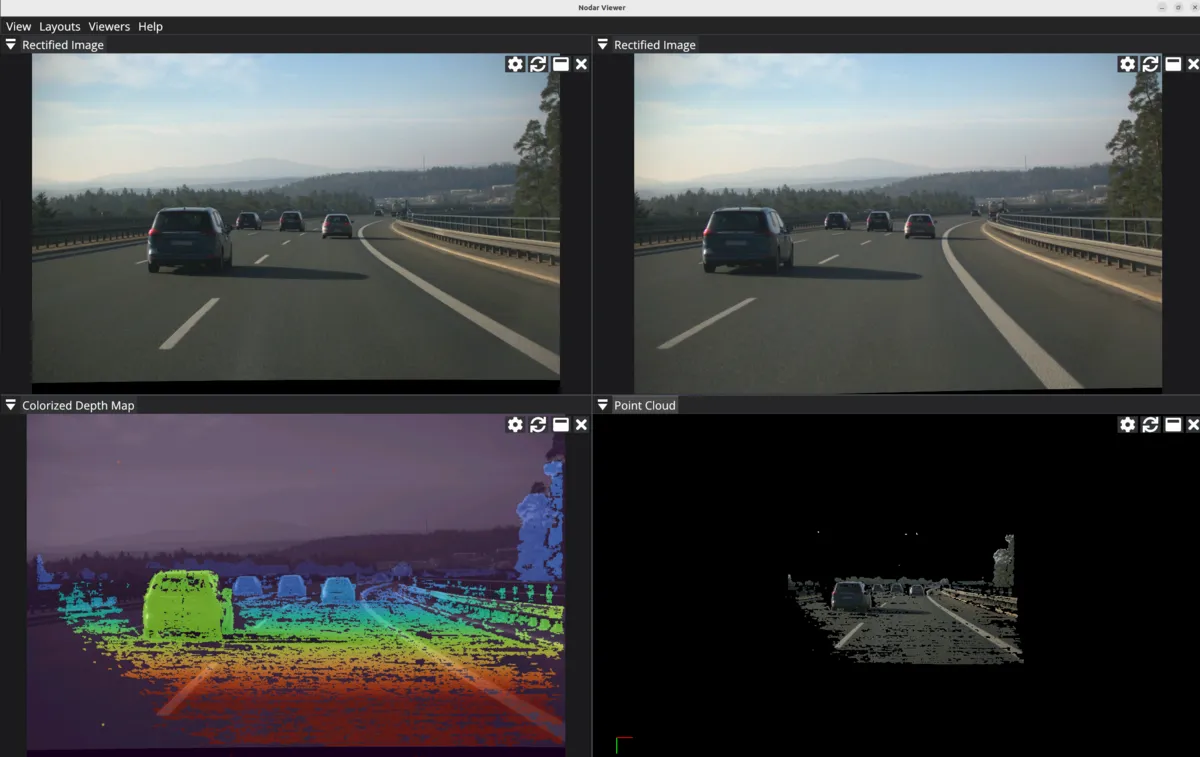
NODAR Viewer is a powerful and intuitive software tool designed to visualize and control stereo camera data. Tailored for professionals working with stereo vision systems, NODAR Viewer lets users view real-time camera streams, analyze depth data, and adjust camera settings. With its user-friendly interface and robust features, NODAR Viewer empowers users to unlock the full potential of stereo cameras in various applications, from robotics to automotive systems.
The viewer can be run on the Orin running Hammerhead or a separate computer connected to the Orin via 10G Ethernet. If run on the Orin that also runs Hammerhead, both the viewer and Hammerhead will compete for GPU resources and the frame rate will drop.
Data can be viewed in real-time from Hammerhead or replayed from disk.
Downloads
Download for macOS (Intel and Apple Silicon)
Sample Datasets
How to Use NODAR Viewer
Minimum System Requirements
Processor (CPU)
- 3.0 GHz or higher clock speed
- Minimum 4 physical cores (8 threads)
Graphics Card (GPU)
- Minimum 2 GB VRAM
- Vulkan 1.3 support required
Memory (RAM)
- Minimum: 16 GB DDR4
- Recommended: 32 GB for large datasets or concurrent workloads
Storage
- Minimum 256 GB SSD
- NVMe SSD recommended for improved read/write speeds
Installation
Ubuntu
To install the viewer:
sudo apt install ./nodar_viewer-<arch>.debThe software will be installed to /usr/bin/nodar_viewer.
To uninstall:
sudo apt remove nodar_viewer-<version>-evalkit-gd-<arch>macOS
Requires macOS 12 or newer. The download supports both Intel and Apple Silicon Macs.
- Open the downloaded
.dmgfile. - Drag Nodar Viewer.app into Applications.
- Open Nodar Viewer from Applications.
Playing Back Sample Data
- Open NODAR Viewer (on Ubuntu, type
nodar_viewerin the terminal; on macOS, open Nodar Viewer from Applications). - Open the properties panel with Properties → Show if it is hidden, then select Playback from the Viewer Mode dropdown in that panel.
- Click Open and point to the sample dataset you downloaded.
- Click Validate.
- Click the Play icon to start playback.